Do you use Google Analytics? Then get ready. The countdown has begun.
Starting July 1, 2023, only GA4 (Google Analytics 4), the latest version of the famous statistical analysis tool, will be able to use and collect data related to your WordPress site.
By then, you have no choice if you want to continue taking advantage of Google’s audience analysis solution: you must migrate from GA3 to GA4.
That is the main purpose of this article. By the end of these lines, you will have, in particular, a step-by-step plan to achieve this.
What is GA4?
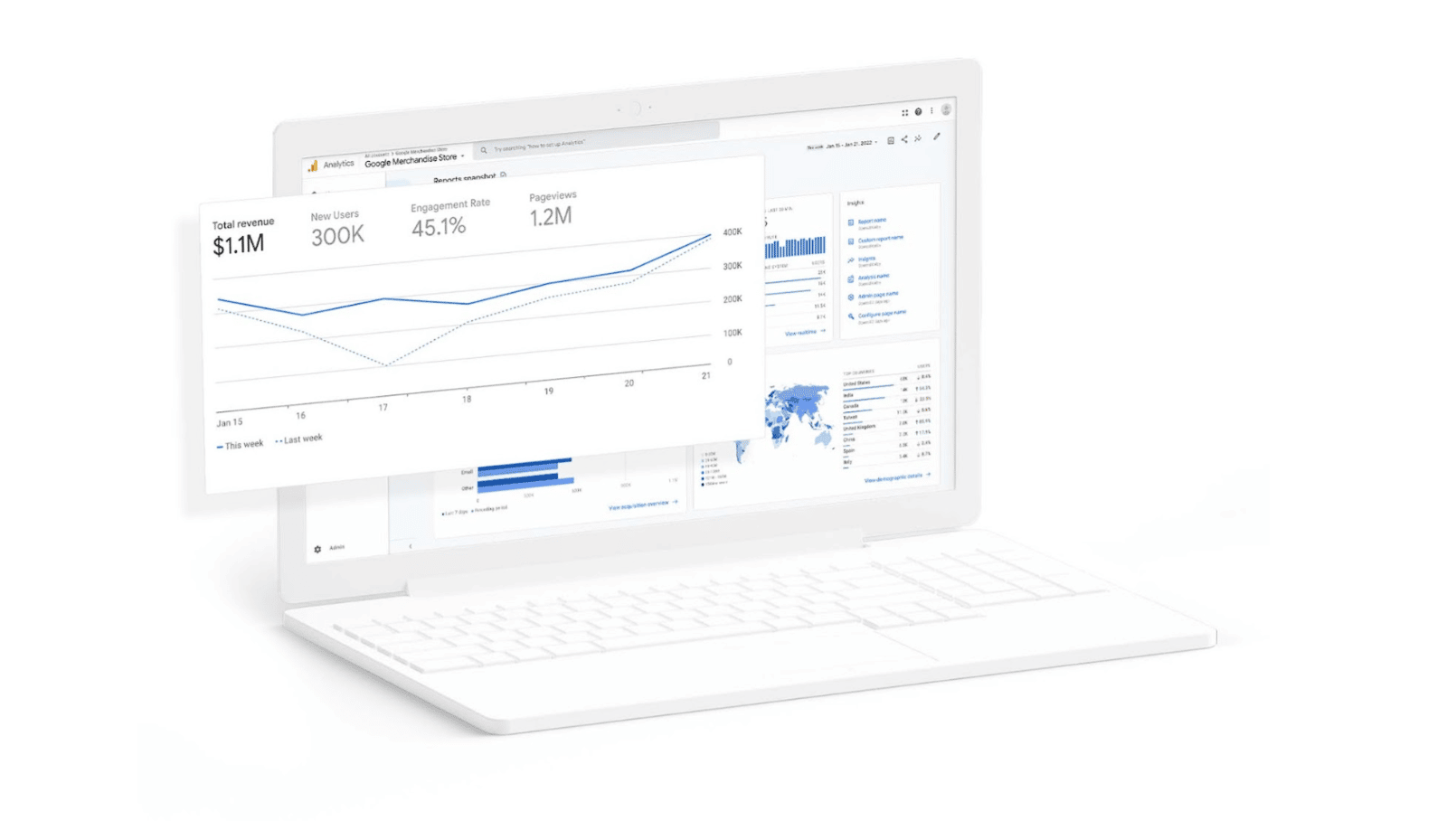
Google Analytics 4 (GA4) is the new generation of Analytics, Google’s free tool for statistical analysis of website traffic.
Launched in beta in June 2019, GA4 became the default platform for all new properties in October 2020.
Unlike its predecessor, Google Analytics 3 (also called Universal Analytics), which collected data based on sessions and page views, Google Analytics 4 “collects event-based data from websites and apps”, Google explains.
A session represents the period during which a user is active on your website or application.
An event measures a specific interaction by a user on a website or application (e.g.: purchasing a product, clicking a link, loading a page, page view, etc.).
Finally, a property is the name Google uses to refer to your website. Thanks to this data, you can in particular monitor some of the SEO (organic search optimization) actions for your WordPress site.
What are the specific features of Google Analytics 4?
To present the latest version of its statistical analysis service, Google highlights several key characteristics:
- GA4 respects privacy better than Universal Analytics, since it “includes privacy settings such as cookieless measurement, and behavioral and conversion modeling”;
- it works across all platforms (cross-device tracking), whether on websites or mobile applications, with one and the same Google property.
Thanks to this, the data collected by the tool makes it possible to “ better understand the customer journey ”, while improving the user experience. Users can find all their information in the same interface, without having to switch from one device to another (cross-device and cross-platform). Practical for measuring your audience without spreading yourself too thin ; - user data protection and anonymity are enhanced because Google Analytics 4 automatically anonymizes IP addresses (this had to be done manually in Universal Analytics, as specified in this content);
- the new version of the analytics tool uses predictive features powered by artificial intelligence (AI), capable of providing users with advice and recommendations to increase marketing ROI (Return on Investment) throughout the entire customer journey;
- GA4 offers “direct integration” with Google’s advertising platforms (such as Google Ads), to help you optimize the performance of your marketing campaigns while making them easier to track;
- GA4 automatically collects events. Certain events make it possible “to evaluate additional features and behaviors, and generate more useful reports”, explains Google, which even offers recommended events;
- You can create custom reports based on a predefined template. A template gallery is also available.
Why did Google decide to launch GA4?
GA4: a necessary adaptation to a changing ecosystem
To justify this switch to Google Analytics 4, Google first puts forward a technical reason.
According to Russell Ketchum, Director and Product Manager of Google Analytics, GA3 (Universal Analytics) was simply unsuited to recent developments in the digital ecosystem.
“Universal Analytics was designed for a generation of online measurement that was rooted in desktop computers, independent sessions, and more easily observable data from cookies, he explains in this blog post. This measurement methodology is quickly becoming obsolete. Google Analytics 4, on the other hand, works across multiple platforms, does not rely exclusively on cookies, and uses an event-based data model to provide user-centric measurement.”
Google Analytics has been around since 2005, following its acquisition of the analytics tool Urchin Software.
A pressing need for better control over data privacy
The second reason put forward by Ketchum is based on the desire to protect “user privacy” and their personal data, particularly in order to comply with the General Data Protection Regulation (GDPR), in force since 2018.
Here, the goal is to “offer a better experience to our customers and their users”, adds Ketchum. In this regard, Google Analytics 4 “helps businesses meet users’ changing needs and expectations, thanks to more comprehensive and more granular controls over data collection and use”.
Why switch to Google Analytics 4?
If you have been using Google Analytics since October 14, 2020, there is a good chance that you are already using the GA4 interface.
If your property was created before that date, Universal Analytics is still the one providing your website’s traffic statistics.
A Google Analytics 4 property consists only of digits, in this format (XXXXXXXXX). Universal Analytics properties begin with “UA” and end with a digit (e.g.: UA-XXXXXXXXX-1). To find out what type of property you are using, see this tutorial.
A matter of time
Is your WordPress site connected to a Universal Analytics property? If so, Google encourages you to “switch to Google Analytics 4 as soon as possible”.
Indeed, standard Universal Analytics properties will stop processing data from July 1, 2023 (July 1, 2024 for Universal Analytics 360 properties).
This data will be retained for at least 6 months, after which you will no longer be able to view it (no specific date had been announced by Google at the time of writing).
In other words, you have no choice but to switch to Google Analytics 4 if you want to continue using Google’s statistical analysis tool.
A matter of analytics (and its effectiveness)
Besides timing considerations, it is recommended that you migrate to Google Analytics 4 as soon as possible so you can analyze your data more accurately over the coming months.
As detailed in this article, “the whole point of web analytics is to be able to analyze data over time, across a sufficiently broad date range that allows comparative analyses against a given previous period”.
This is known as Year-Over-Year analysis (YoY, from one year to the next).
In practical terms, to be as complete and representative as possible, the history of the information collected by GA must cover at least one full year.
So don’t delay in getting your sites up to date and switching to this new version!
In the next section, you will discover the detailed procedure for taking action.
How to migrate from GA3 to GA4 in 5 steps?
Migrating from Universal Analytics to Google Analytics 4 can be done in just a few clicks, with no technical knowledge, thanks to an intuitive setup assistant provided by Google.
It is intended for all types of users (from beginners to advanced users).
A Google Analytics 4 property will then be added to your existing Universal Analytics property, which will continue collecting data until July 1, 2023, as you read earlier.
Now, see exactly how to proceed with this tutorial for switching to GA4, with various levers to activate.
Step 1: Select your Universal Analytics property
Start by going to your Google Analytics account, then click “Admin” at the bottom left:
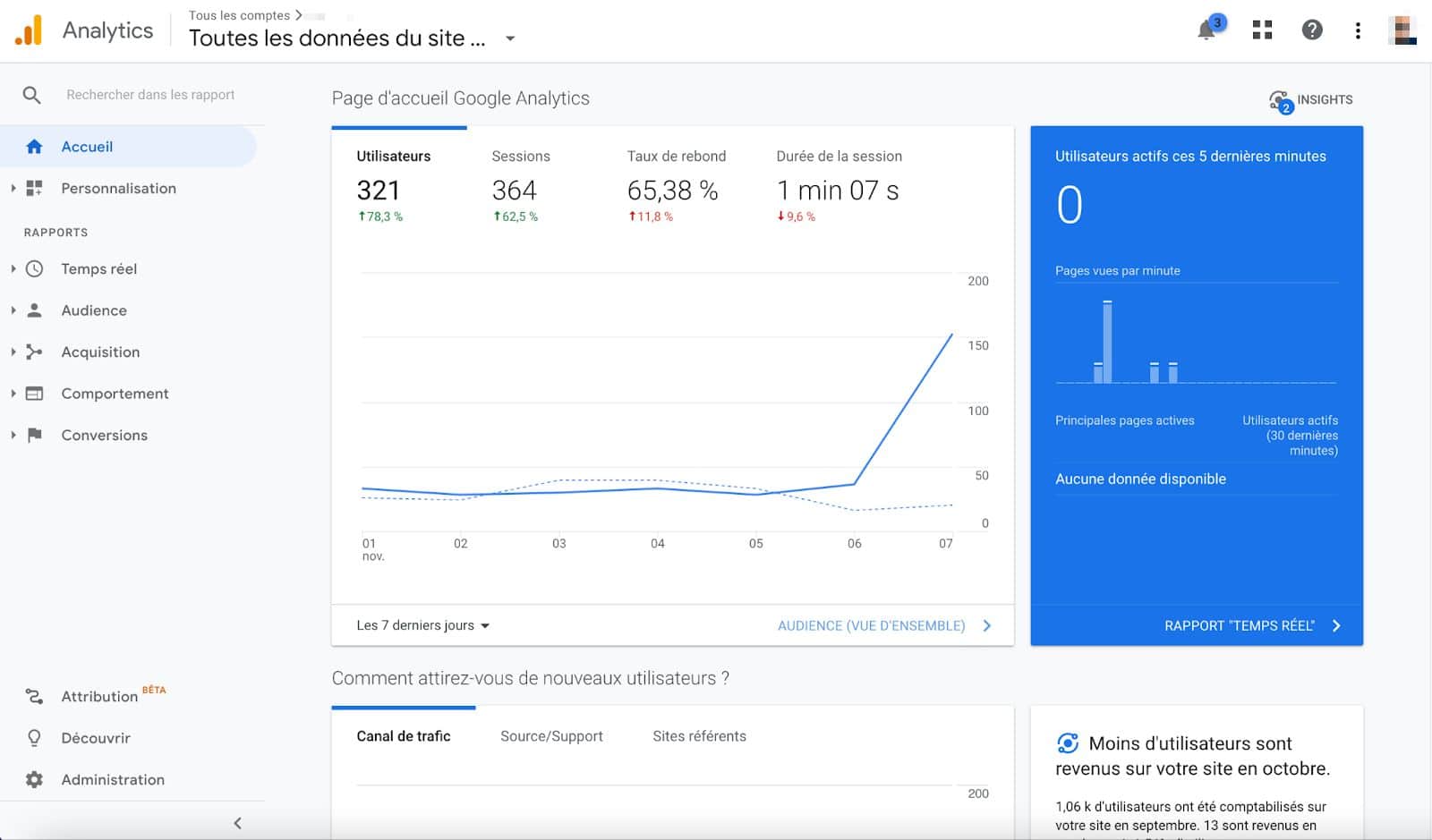
In your interface, in the “Account” column, check that your account is selected in the available settings. If you only manage one account, this will be the case:
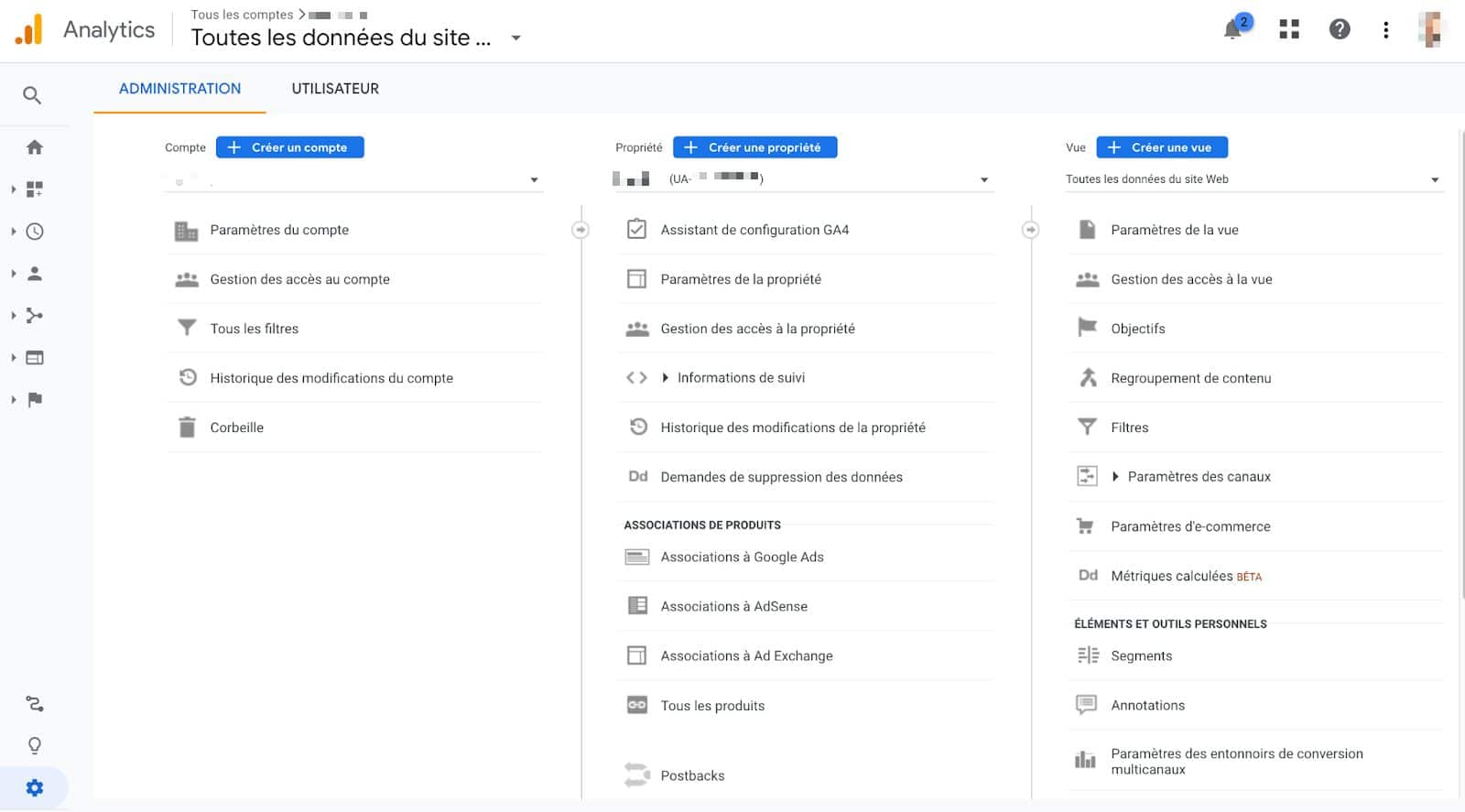
In the “Property” column, make sure you have selected the property that is currently collecting data from your website:
Step 2: Create a new property in your Analytics account
Now on to step 2. Launch the Google Analytics 4 setup assistant. To do this, click “GA4 Setup Assistant” in the “Property” column:
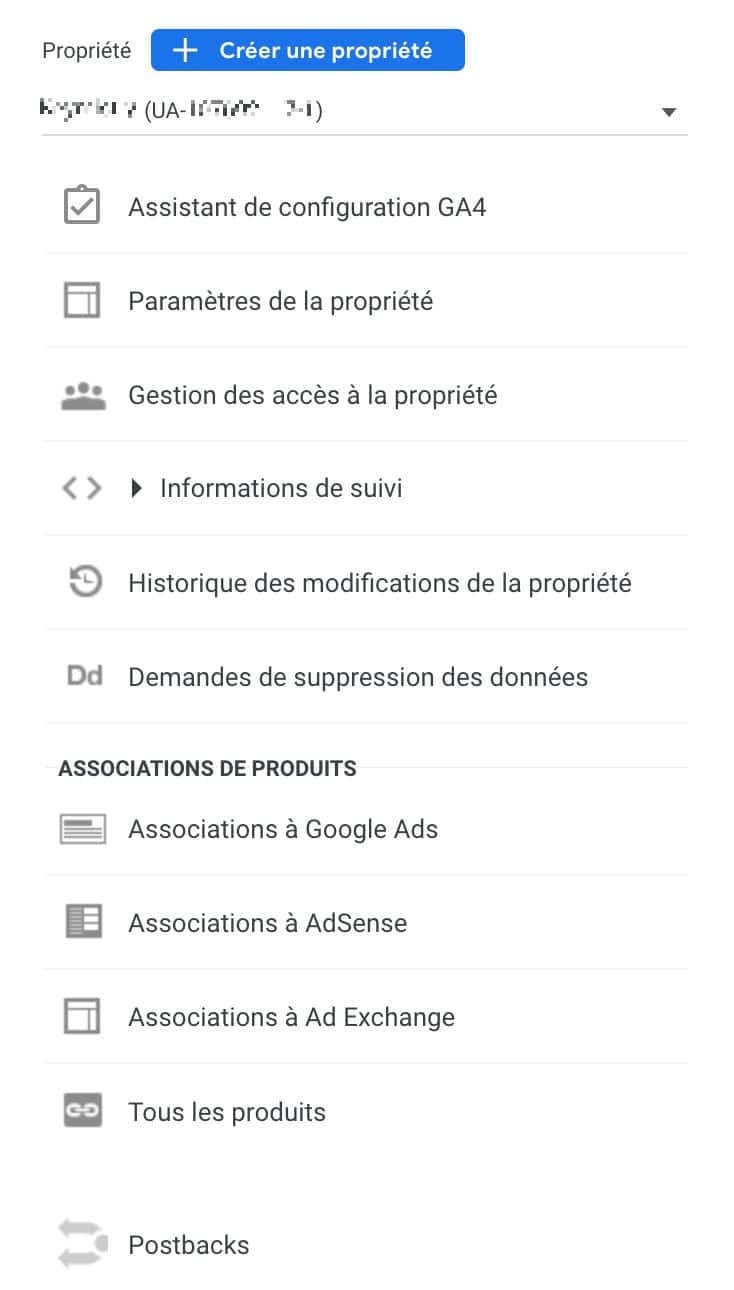
You must have the “Editor” role on the account to use the setup assistant.
Then click “Get started” in the box titled “I want to create a Google Analytics 4 property”:
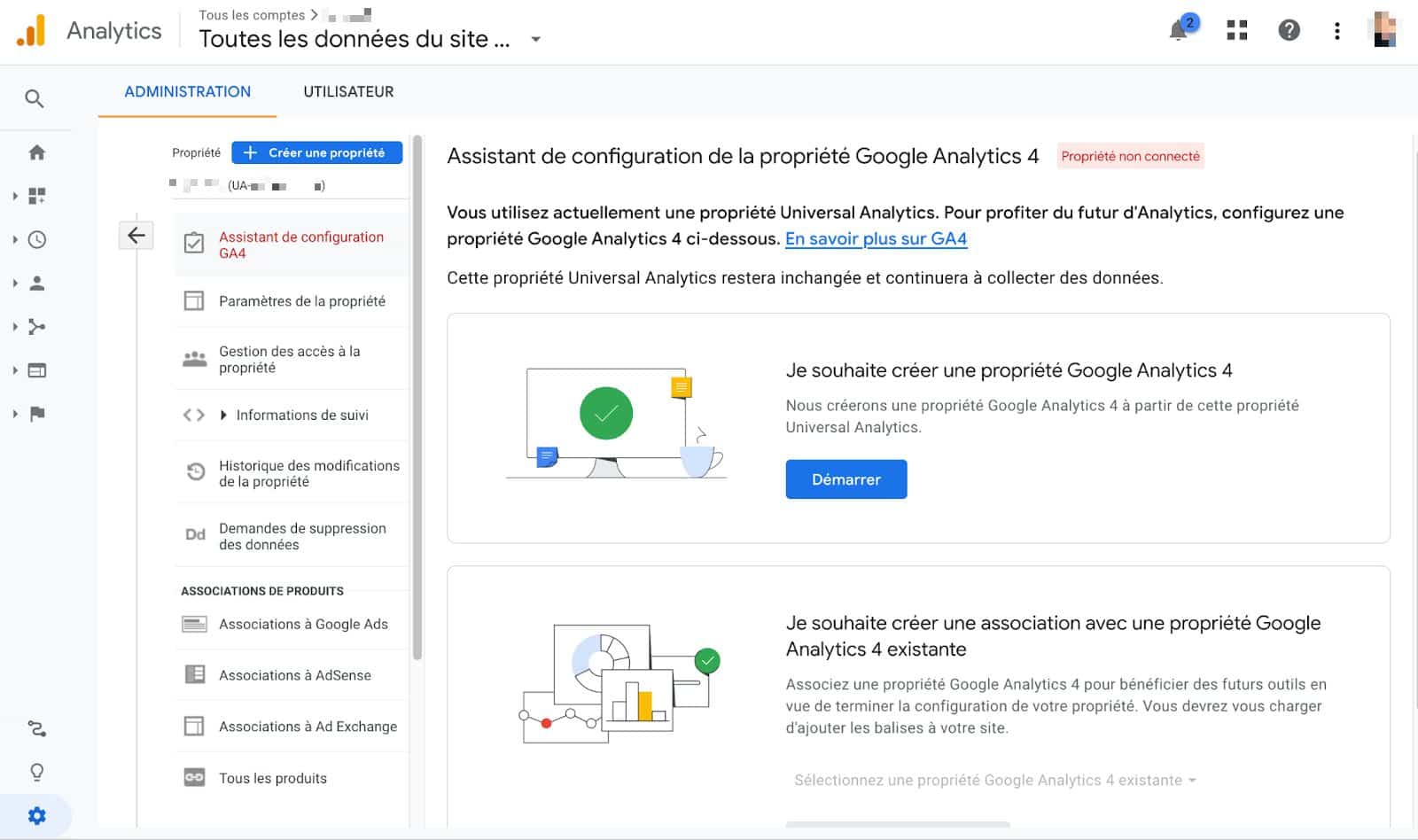
Wait a few seconds, and your GA4 property should normally be created and connected to the old one, which is already collecting your data.
You can view its name and ID at the bottom of the page:
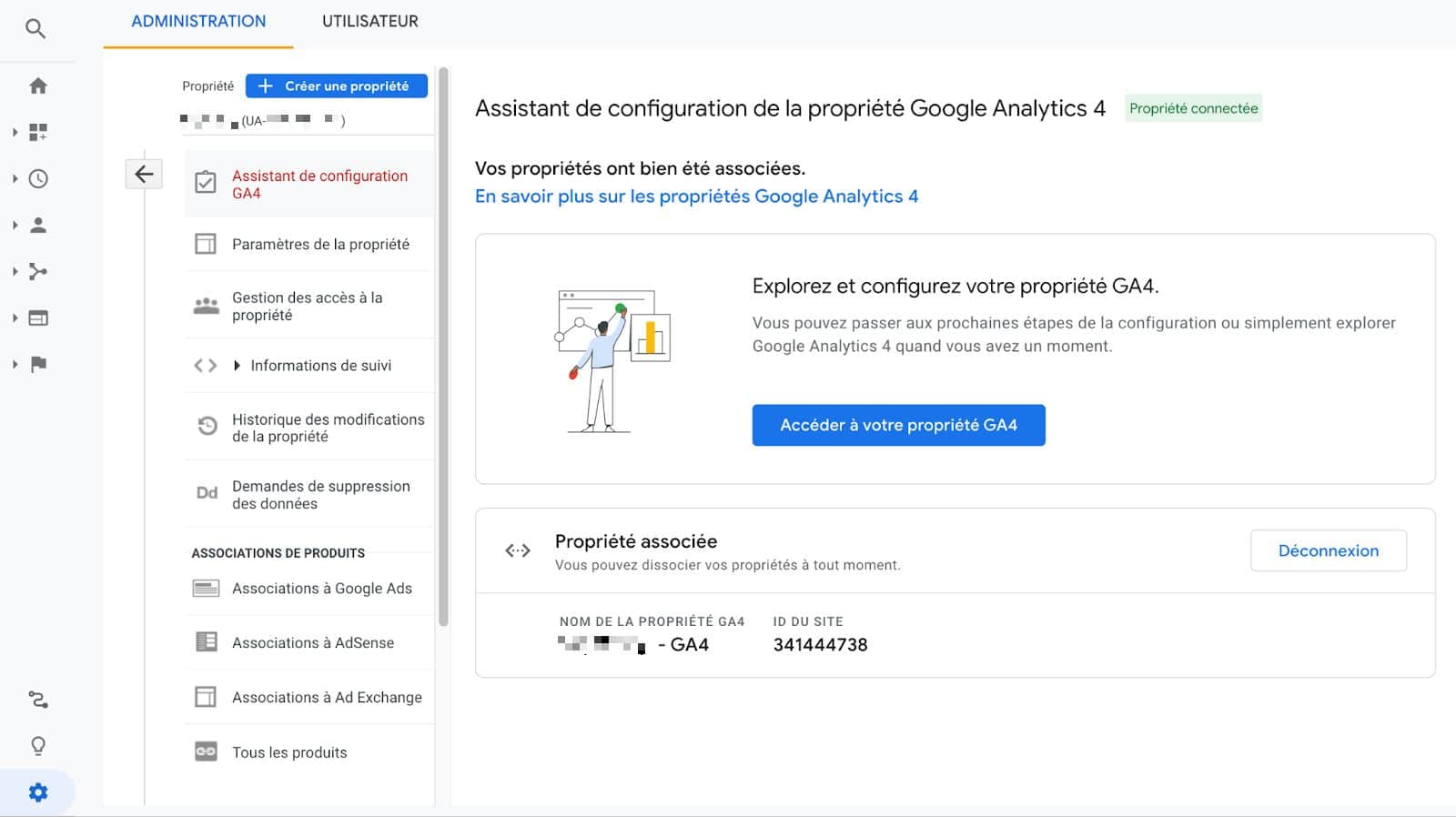
You can also see that your properties have been successfully linked via a message displayed at the top of the “Google Analytics 4 property setup assistant” page.
If you want to explore and configure your GA4 property, click the blue “Go to your GA4 property” button.
Step 3: Check that data collection is working
If the GA4 setup assistant offered to enable data collection using your existing tags, your new GA4 property should now be collecting data.
They may take up to 30 minutes to appear in your dashboard (dashboard), for your information. To make sure, visit the pages of your website. Once that’s done, go to the Reports > Real-time section.
If you see at least one activity in your settings (page view or session), you’re all set:
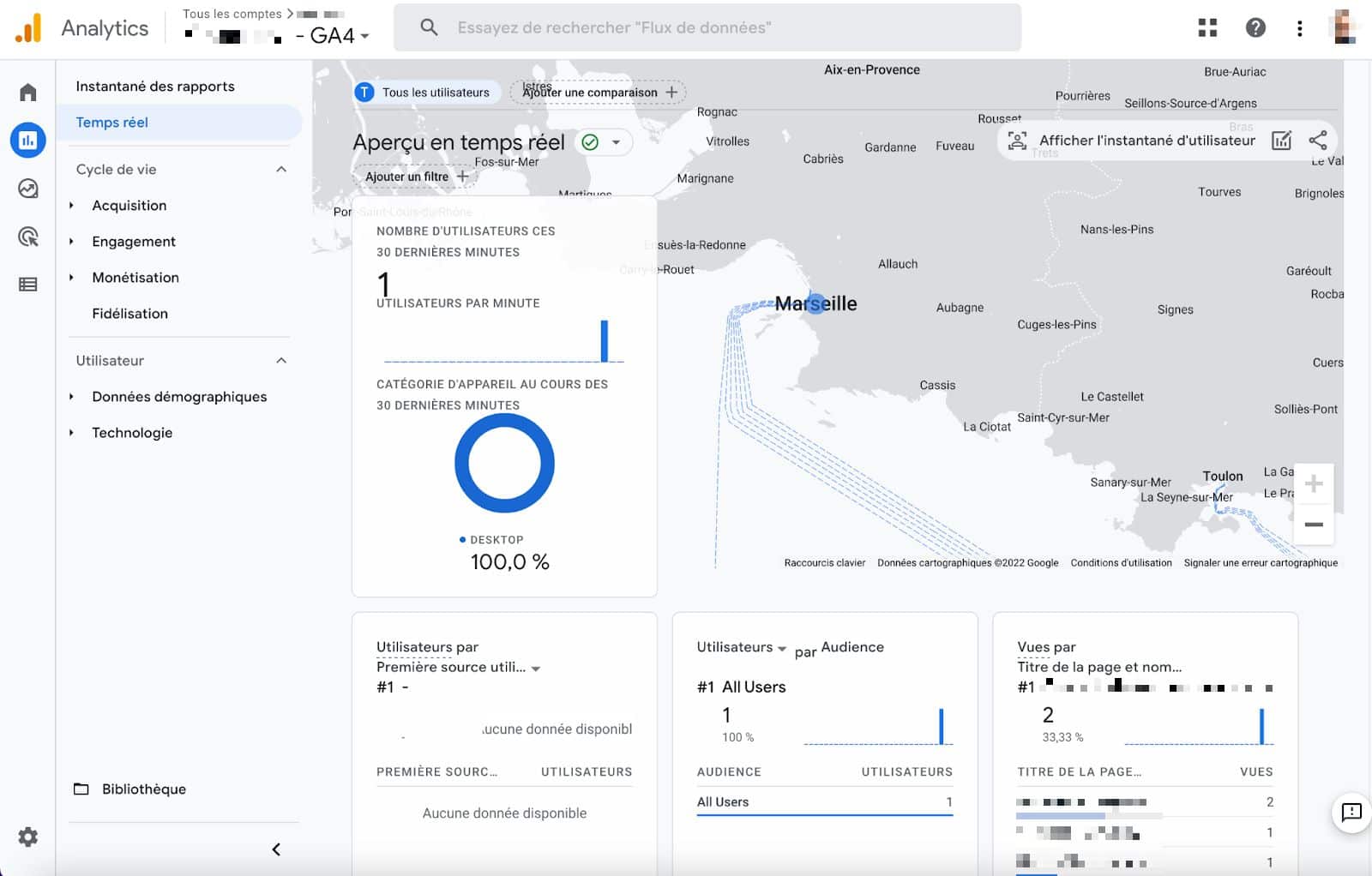
This means that your website uses the gtag.js tag. It uses the gtag.js JavaScript library to send data to Google Analytics.
You will then be able to track and analyze the traffic that will arrive on your pages.
If the setup assistant cannot reuse the existing tag (e.g., because you use Google Tag Manager or an analytics.js tag), you will then need to add the gtag.js tag yourself to the pages of your website.
Step 4: Add the gtag.js tag (if needed)
If you have to take care of it yourself, note that you will find the code for this tag in the “Admin” section. In the “Property” column, click Data streams > Web.
In the “Google tag” box, select “View tag instructions.” You can manually copy and paste the code shown in the “Install manually” tab just after the tag in the source code of your site’s pages.
For greater convenience, you can also use a WordPress plugin that will do all the work for you. This is the case, for example, with the GA Google Analytics plugin for WordPress.

In principle, everything is fine. Wait a little and go check again in the “Real-time” section that you are indeed receiving visits (sessions). This would mean that tracking is active).
A quick practical tip: you can also use the Chrome Tag Assistant Legacy extension to check that your gtag.js tag has been correctly added to the pages of your site.
Have you never used Google Analytics before? Google explains on this page how to activate GA4 from scratch, for example if you have just launched a new site.
Step 5: Configure features of your new GA4 property
Once the above operations have been completed, you can fine-tune your settings by configuring the parameters of your property according to your needs (GA4 setup process).
The GA4 setup assistant also suggests certain actions to take regarding data configuration. In no particular order, I could mention the following things:
- enable Google signals, to benefit from more powerful remarketing and reporting features;
- create a Google Ads link (formerly Google Adwords) and set bids for GA4 conversions;
- define audiences ;
- configure conversion goals;
- connect GA4 to BigQuery (for example, you can opt for streaming export);
- add users.
- Click on Metrics, then select each of the metrics you want to include in your report. For example, the total number of users, the bounce rate, conversions, and total revenue.
Congratulations: you are now using Google Analytics 4. Without further ado, let’s move on in the next section to a more controversial topic: GA4’s compliance with the GDPR.
Is GA4 GDPR-compliant?
Since 2018, the GDPR has ensured that every individual has control over and protection of the personal data they share while browsing the internet.
The body responsible for ensuring compliance with it in France is the CNIL (French National Commission for Information Technology and Civil Liberties). And the least we can say is that it has Google Analytics in its sights.
An example? In February 2022, it issued formal notices to several organizations using Google Analytics due to illegal data transfers to the United States.
It even recommended no longer using Google Analytics under the current conditions, without distinguishing between Universal Analytics and Google Analytics 4.
However, the latter is intended to be more respectful in terms of data confidentiality and privacy.
As this article states, “it cannot be said today that the use of GA4 will comply with the GDPR and meet the requirements of European authorities such as the CNIL”.
Should you therefore rule out a possible migration to GA4? Not necessarily, and for several reasons:
- Google Analytics will continue to evolve and is working to meet the requirements of the CNIL and European authorities over the coming months;
- the CNIL itself offers a solution to make Google Analytics GDPR-compliant, via a proxying solution;
- the European Commission and the United States announced, in March 2022, an agreement in principle on “a new transatlantic personal data protection framework” aimed at better regulating data flows to the United States.
Although it is not yet considered a legal framework that organizations can rely on to transfer data to the United States, it could become one in the future.
For the moment, then, it is difficult to have a firm opinion on the matter. If in doubt, we recommend that you contact a legal specialist for further clarification.
And if you have decided to take advantage of the planned end of Google Analytics 3 to switch to an alternative solution, read on.
What alternatives are there to Google Analytics 4?
Google Analytics is by far the traffic analysis tool most widely used by webmasters. At the time of writing, it was taking up nearly 86% of the market share.
Its dominance is unrivaled, but it is not the only tool that can help you analyze your traffic data.
If the uncertainties surrounding data confidentiality and privacy raise concerns for you, be aware that there are other alternatives on the market.
While they are not all free and will not always have options as advanced as GA4 for traffic analysis and custom reports, most of them have the advantage of being GDPR-compliant.
The CNIL has even identified the following web analytics solutions (non-exhaustive list) “as being configurable to fall within the scope of the exemption from consent collection”:
- Matomo Analytics (formerly Piwik), which also has the advantage of offering a plugin for the WordPress CMS called WP-Matomo Integration (WP-Piwik);
- AT Internet’s Analytics Suite Delta;
- Piwik PRO Analytics Suite;
- Abla Analytics;
- BEYABLE Analytics;
- Wysistat Business ;
- SmartProfile.
GA4: the summary
Rolled out since June 2019, Google Analytics 4 (GA4) will definitively replace Universal Analytics in July 2023.
As a webmaster and/or website creator, it is important for you to prepare for this change and switch to GA4 as soon as possible, if you want to continue using Google’s performance measurement tool.
Thanks to this article, you have notably learned:
- what the specific features of Google Analytics 4 are;
- why switch to this new version of the analytics tool;
- its impact on respect for privacy, data confidentiality, and its GDPR compliance;
- how to migrate from Universal Analytics to GA4.
Do you need advice, or even support, to switch to Google Analytics 4 smoothly?
Contact the Maintenance WP team, specialists in WordPress technical support.
Available 7 days a week, we will offer you tailored support that meets your needs quickly, professionally, and effectively.